Cuedis user guide
Cuedis sits beside your shop or company database, learns what is normal, notices what changes, and tells you every morning. This guide walks through everything in the app, in the order you will meet it.
1. First start
After installing, Cuedis starts by itself whenever the computer starts. Open it with the Cuedis icon on the desktop. Nothing is opened to the internet: the app runs on this computer.
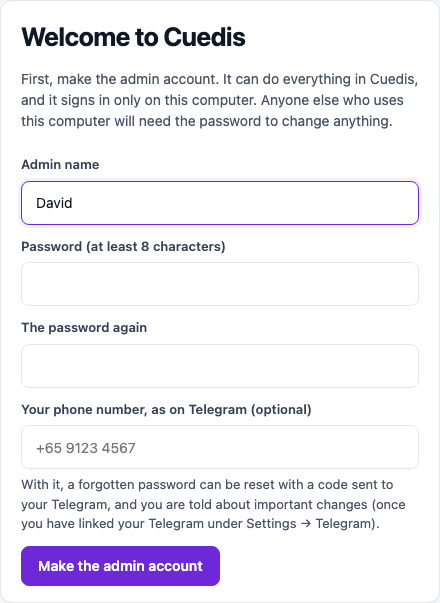
The first time, Cuedis asks you to make the admin account: a name and a password (at least 8 characters), and if you like your phone number as on Telegram. The admin can do everything, and signs in only on this computer. Anyone else who uses the computer needs the password to change anything.
Leave the computer on, or let it sleep: Cuedis learns each night (around 2 am). If the computer was off, it catches up as soon as it starts again.
2. Your licence
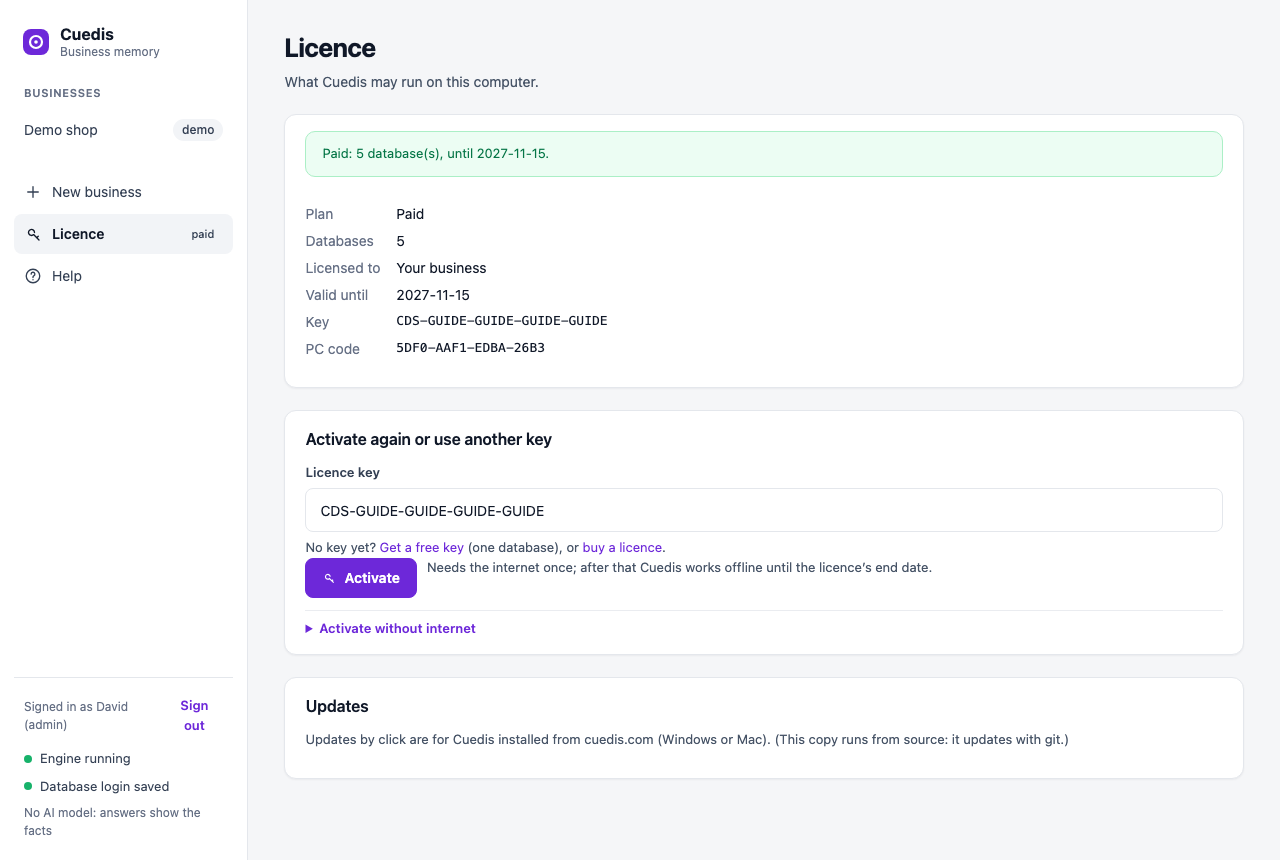
Open Licence in the sidebar. Paste your licence key (it looks like CDS-XXXXX-XXXXX-XXXXX-XXXXX)
and press Activate. No key yet? Get a free key at cuedis.com: it is shown straight away.
- Free: one database, your own briefing and chat on Telegram (one phone).
- Paid: as many databases as your licence says, staff and teams on Telegram, group chats, the app on other office computers, AI agents and the API.
- No internet on this computer? Open Activate without internet. On any phone or computer, sign in at cuedis.com → My account → Activate without internet, enter the PC code Cuedis shows, and paste the activation code you get back.
- One computer per licence. If you replace the computer, contact us and we release the licence from the old one.
- Running out. You are reminded 30 and 7 days before. After the end date Cuedis keeps working for 14 days, then runs as Free: the first business keeps going, the others pause. Nothing is deleted; renew and press Activate again to bring everything back.
Features that need the paid licence are shown where they belong, with a small lock and an Unlock button that takes you to cuedis.com with your key filled in.
3. The demo shop
Not ready to connect your database? Press Open the demo shop (on New business). It is a made-up electronics shop with six months of history and four problems hidden in it: a supplier turning unreliable, a margin leaking slowly, a day the tills went down, and a product suddenly selling. Cuedis has already learned it, so every page works. The demo reads no database, isn't counted by your licence, and can be removed under its Settings.
4. Adding your business
Open New business.
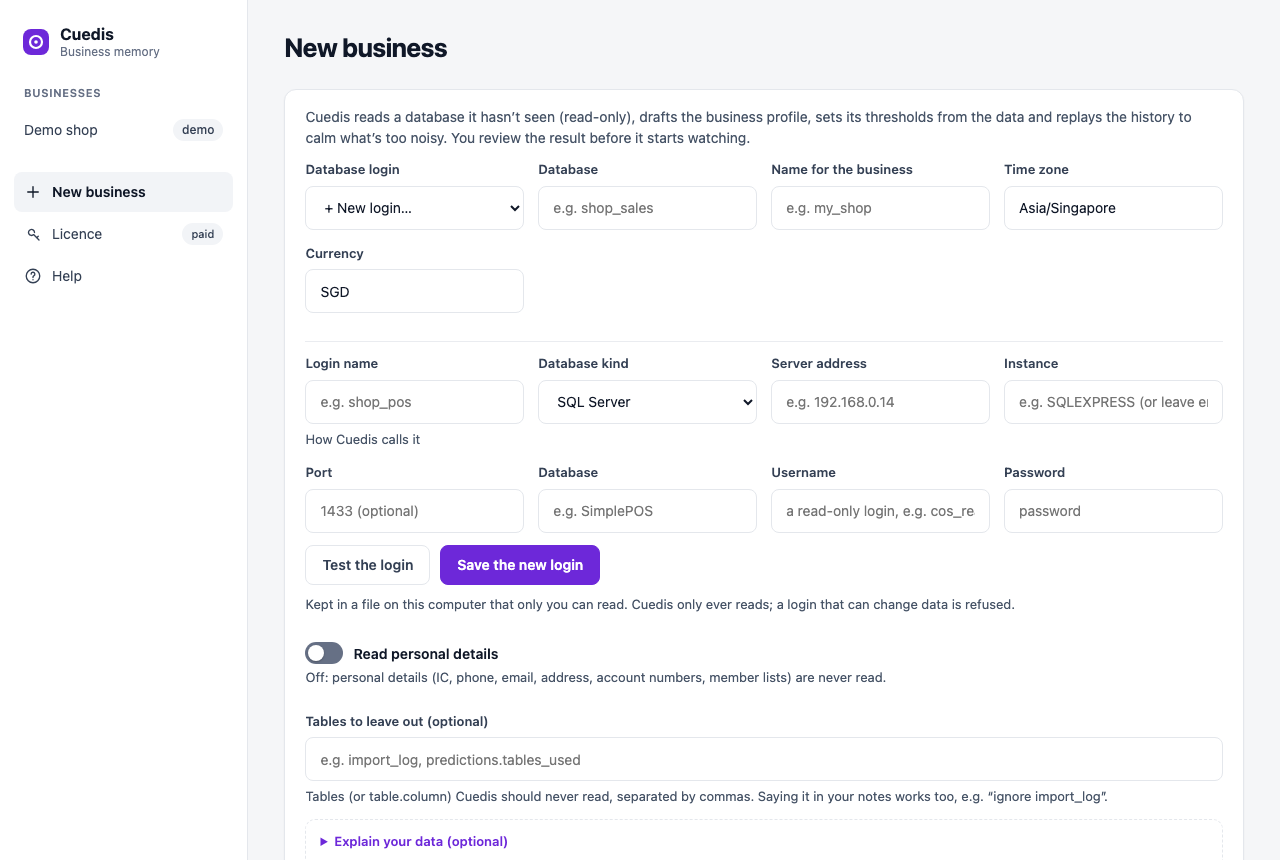
- Database login. Choose MySQL or a SQL Server login, or press + New login and fill in the
server, database, user name and password. Cuedis only ever reads: a login that can change data is refused (it explains
how to make a read-only one). Never use the
salogin. - Database and name. The database to read, and a short name for the business.
- Personal details are off: phone numbers, IC numbers, addresses, birthdays and member lists are never read. Switch it on only if your business needs them.
- Tables to leave out: anything Cuedis should never read (e.g. an import log).
- Explain your data (optional): a schema, a data dictionary, the system's manual, or a few lines like “STAT V means the bill was voided”. Cuedis checks every explanation against the database.
- Press Draft the profile. Cuedis studies the database (a minute on small data, longer on millions of rows), works out what to watch, and may ask a few questions about codes it can't work out. Answer what you can, then press Add as a business. It reads the history and learns it in the background.
5. Today
The page you will open most. At the top, how many things need your attention.
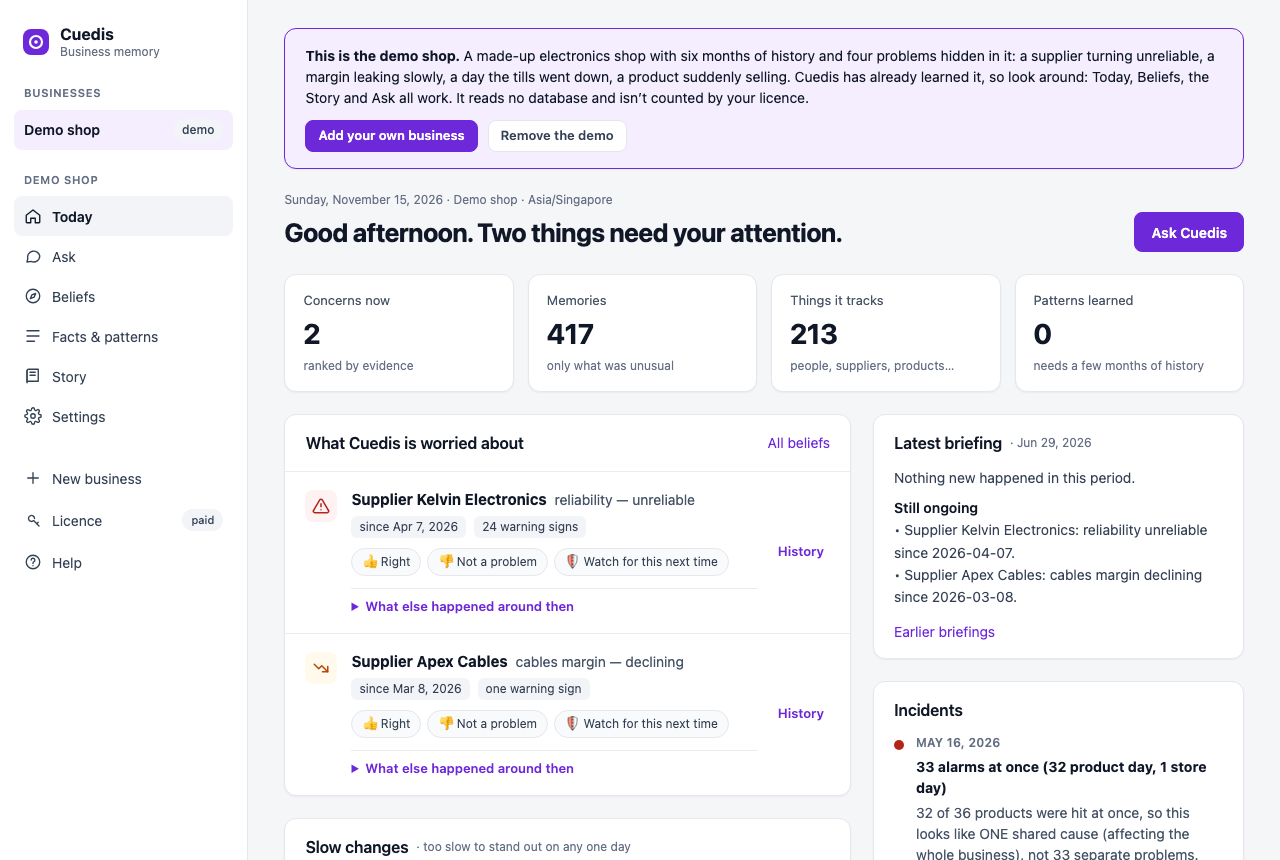
- What Cuedis is worried about: each concern says who or what, what changed, since when, and how many warning signs. Warnings that are really the same problem are tucked under their cause.
- Right / Not a problem: tell Cuedis whether it was right. This is counted in “How right I've been”.
- Watch for this next time: Cuedis tells you on Telegram at once if it happens again.
- What else happened around then: notes, incidents and other changes within a week either side. Nearby is not the same as the cause, but it often helps.
- Latest briefing: the morning summary (also sent on Telegram).
- Slow changes: things creeping a little every week, too slowly to notice on any one day.
- Incidents: days when many things went wrong at once, grouped as one problem.
6. Ask
Ask in plain words: “Which items sold best this year?”, “Sales by department in July 2026”, “What's new?”. Cuedis picks where to answer from by itself:
- Its own tested queries for everyday questions: totals, top items, sales by department or payment type, number of bills, for a month, a year, today, last week. These answer in about a second with no AI, and are marked Cuedis's own tested query. Cuedis builds them from your data and checks them against your bill totals, so they match your own reports. Breakdowns end with a Total line.
- Its memory for what was unusual, what happened, and its summaries (“busiest months”, “what happened on 18 July?”). Summaries show at once.
- A read-only query written by the AI for anything else (“items sold after 6pm in July”). On a computer without a graphics card this can take a few minutes.
The facts or the query are shown under each answer. Follow-up questions (“what about by department?”) use the period of the question before. While a question is being answered, the Ask button becomes Stop. Clear conversation is under the question box. After an update, or after you change a business's settings, Cuedis rebuilds its tested queries in the background (a few minutes); the old ones keep answering meanwhile.
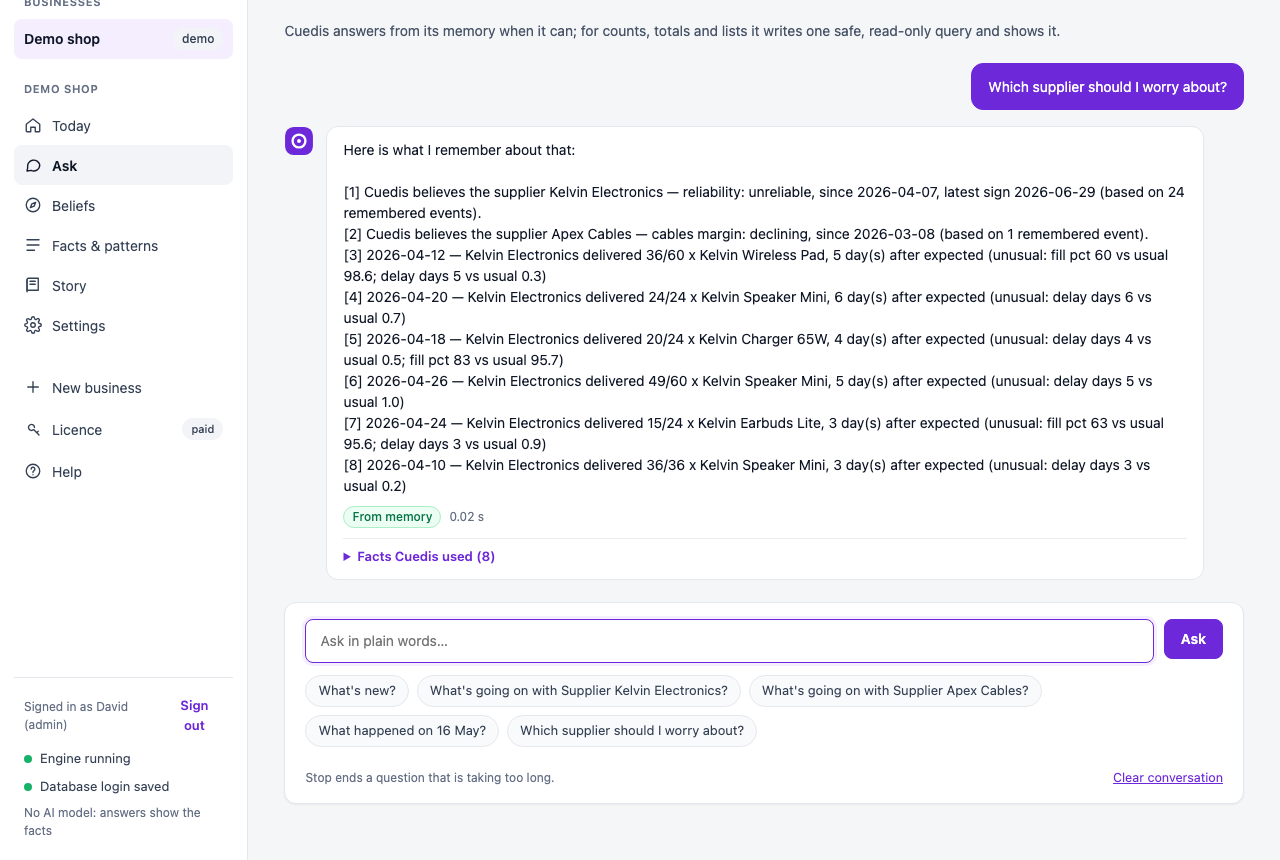
Check what you believe (under Ask): write things you believe about the business, one per line. Cuedis tests each one against your data and shows the query it used.
7. Beliefs
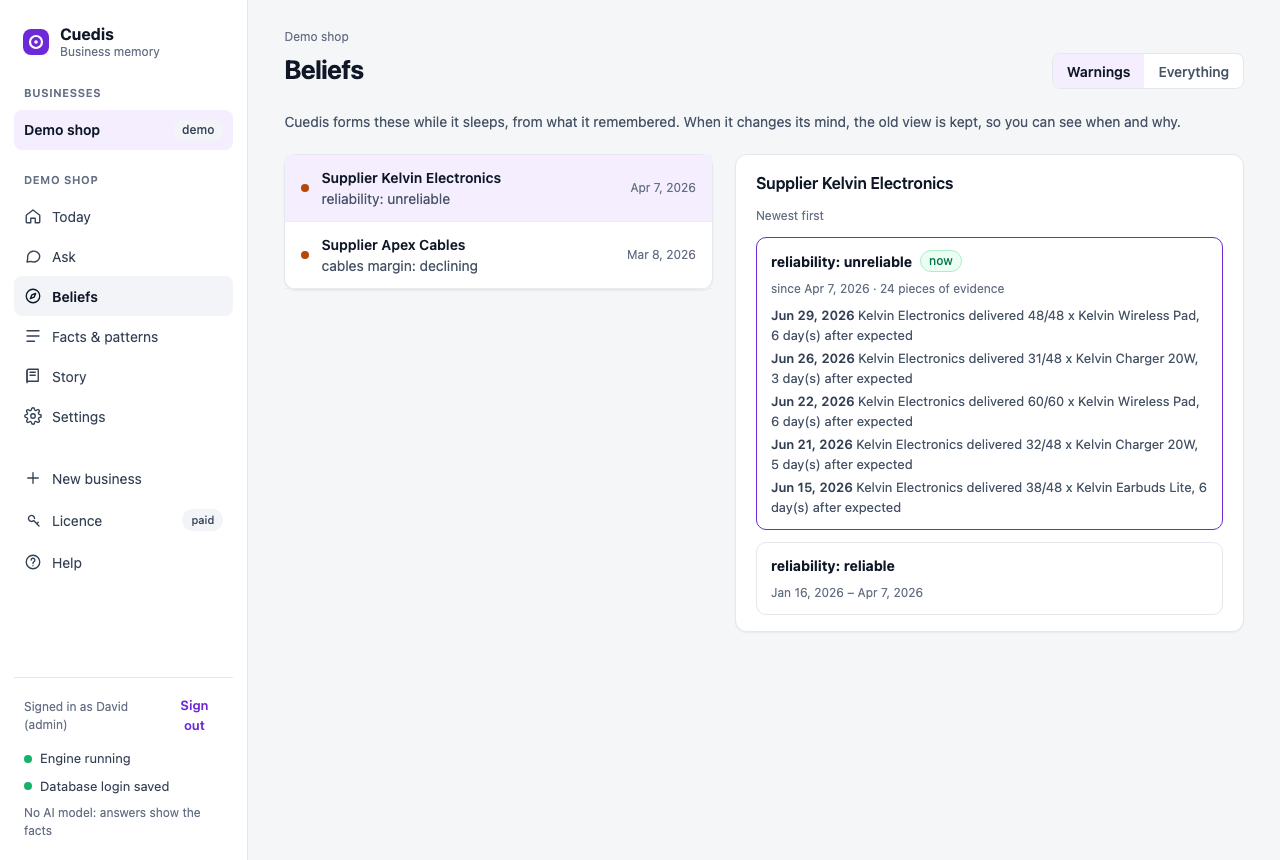
Everything Cuedis currently believes about the people, suppliers, products and places in your data. Open one to see how its view changed over time, with the evidence for each step. Old views are never deleted: you can always see why Cuedis changed its mind.
8. Facts & patterns
Standing facts are summaries Cuedis keeps up to date every night (best months, best sellers, margins), with earlier versions. Patterns are things that keep happening on the same calendar spot (month end, a weekday, a festival). Patterns need a few months of history before they appear.
9. The story
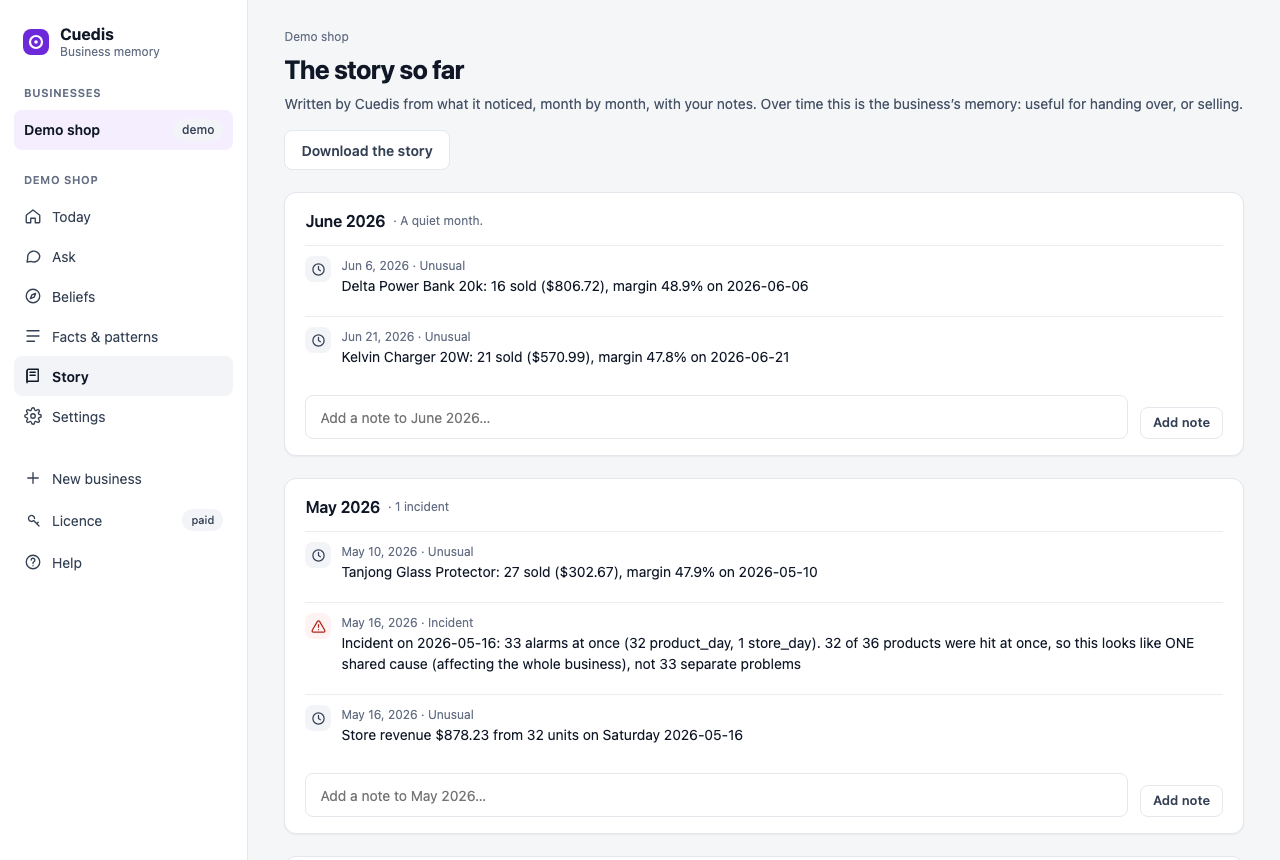
Month by month: what started and ended, incidents, your notes and the stand-out events. Add a note to any month. Download the story to hand over to a manager or a buyer of the business.
10. Run
You don't need to press anything here. While Cuedis is running, it reads new data every 5 minutes, and once a night it learns from the day and writes the briefing: at 2 am, or as soon as the computer is on again if it was off. Run lets you do a step now (read, learn, or both), see the earlier briefings, and use the time machine: it replays the past in a private memory to show what Cuedis would have warned you about, and when.
11. Settings
Everything about one business:
- Business: the name shown, time zone and currency.
- Database: which login and database; test the login.
- Privacy: personal details, and tables Cuedis must never read.
- Records that should agree: e.g. each bill's total and the sum of its lines. Cuedis checks new records every night and tells you about any that don't agree.
- Explain your data: any time, add documents or notes; new codes are used in answers straight away. Give it your report queries, stored procedures or a schema (as .sql or text, even a trace of the queries your old reports run) and Cuedis learns how your tables join: which column is the item code and where its name is, which code is the payment type. Each link is checked against your data first; what holds up is used in answers at once, and by Draft again for what Cuedis watches. You can see them under How your tables join.
- What the data means: what a column or code means in your business, the way you'd explain it to a new staff member, e.g. LedgTran.STAT: “S = sold, X = void, A = not money in”. Cuedis fills most of these itself and checks each one against your data. Codes meaning void, cancelled or refunded are left out of sales totals automatically. Add one only when an answer reads something wrong.
- Same-day alerts: when something is far from normal for an item, a till, a supplier or a person, Cuedis sends it to the Owner team on Telegram within minutes instead of waiting for the morning. Choose Off, Only serious (the default, at most 3 a day) or More (at most 6 a day). The same thing is never sent twice in a day. The next morning's briefing says whether it turned into a concern.
- Draft again: when Cuedis improves or your data changes. It keeps your settings, Telegram people, notes and watches, and learns the history again.
- Your report queries (under Advanced): queries or stored procedures you already use for reports.
Give each the question it answers (“Daily sales by department”) and paste the SQL, or the procedure's name; or bring a
whole
.sqlfile at once. When someone asks that question, on Ask or Telegram, Cuedis runs your query with the dates the question names (write them as@fromand@to), so the answer matches the report you trust. Tick watch and Cuedis runs it every night and tells you when a day is far from normal. Cuedis only runs procedures that don't change data, and undoes anything they do. - AI model (the admin; one setting for the whole computer): where the AI that writes answers and queries runs. On this computer uses the two models in the models folder (they need about 16 GB of memory); Online service uses OpenAI, Google Gemini, Anthropic Claude, DeepSeek, OpenRouter or any OpenAI-compatible service with your API key, for computers too small for the local models; A server in the office uses a stronger computer on your network running Ollama or LM Studio. Press Test before saving. Online, each question goes to that company with what Cuedis found to answer it (never the whole database); personal details stay out unless you switched them on. The key is kept on this computer and never shown again. Online service and office server each keep their own address, model and key, so you can switch between them without typing them again.
- Earlier versions: every save keeps the previous one; put any back.
- Remove this business: kept aside, never deleted; put it back under New business.
12. Telegram
Briefings and questions on your phone. Cuedis only connects out to Telegram: nothing in the shop is opened to the internet, and personal details are never sent.
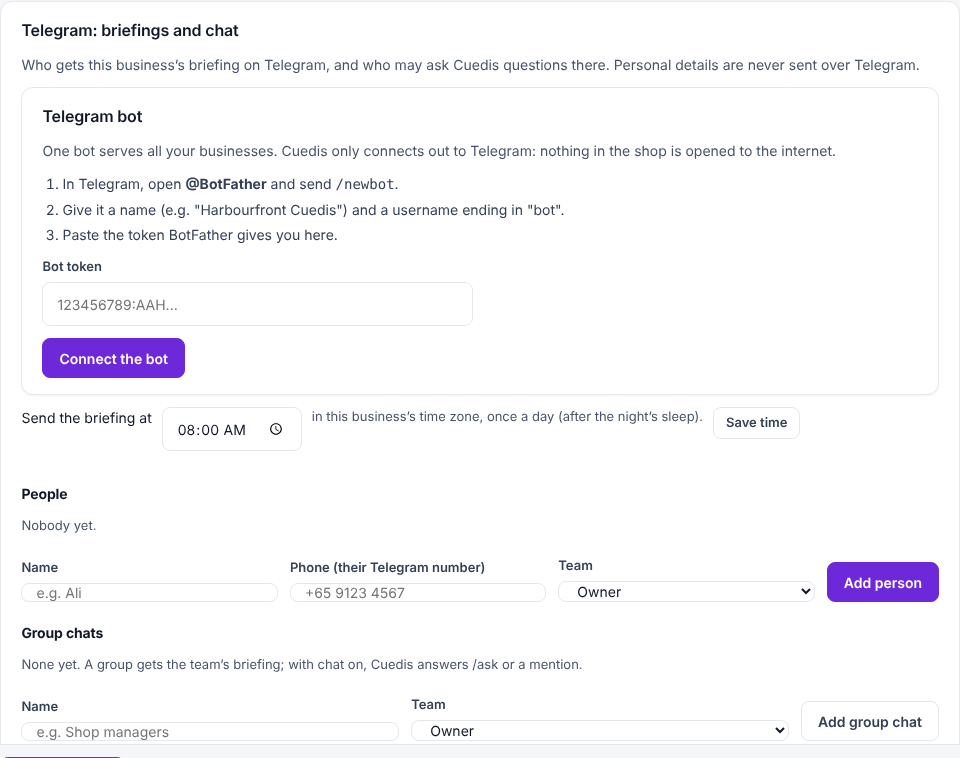
- Make the bot (once, for all your businesses): in Telegram open
@BotFather, send/newbot, give it a name and a username ending in “bot”, and paste the token here. - Add a person: name and phone number as on Telegram, and their team. Send them the invite link; they press Share my phone number in Telegram, which must match.
- Briefing time: when the morning briefing is sent, in the business's time zone.
- Teams (paid): give staff a team and write what it may not see in plain English, e.g. “can't see purchase prices”. Cuedis shows what it understood, and enforces it in briefings, answers and the app.
- Group chats (paid): add the bot to a group and send
/linkwith the code shown.
In Telegram: ask anything, /brief for the latest briefing, /note … to add a note,
/stop to stop the briefings.
13. Using the app from other office computers (paid)
Under Settings → Use the app from other computers, switch it on. Staff open the address shown on any computer in the office and sign in with a code sent to their Telegram. Each person sees what their team may see; only the Owner team gets Settings. You can see who is signed in and sign anyone out. The first time, Windows may ask whether to allow private networks: allow it.
14. AI agents (paid)
Settings → AI agents (MCP) lets Claude, ChatGPT, Cursor and other AI tools on your office laptops ask Cuedis about the business. Make a connection for each laptop or person, choose its team, and copy the key and the setup shown (it is shown once). Each connection sees only what its team may see; personal details are never sent.
15. The admin account
- The admin signs in with the password on the Cuedis computer. The sign-in ends after 2 hours unused.
- Forgot the password? On the sign-in page, a code is sent to the admin's Telegram (if the admin's phone is linked). Otherwise, on the Cuedis computer open the Start menu → Cuedis → Reset admin password.
- Important changes (someone added to an Owner team, a new AI-agent connection, the app opened to the office network, the password changed) are sent on Telegram to the admin and the Owner team, and listed under Settings.
- Settings → Admin account: change the password, name or phone.
16. If something isn't right
- “Cuedis is not reachable”
- Cuedis isn't running: open it with the desktop icon (it starts the program), or restart the computer.
- The SQL Server login is refused
- Cuedis refuses logins that can change data. Make a login that can only read
(the message shows how), and never use
sa. - Telegram doesn't answer
- Check the bot under Settings → Telegram (it shows whether it is running), and that the person joined with their invite link and shared their phone number.
- Answers show codes instead of names
- Cuedis hasn't found which table holds the names. The quickest fix: give Explain your data the SQL of a report that shows those names (a stored procedure, a report query, a schema). Or write it in a note (“ITEM is the item code; its name is in Stock.StockDescr”). Then Draft again.
- Answers are a list of facts, not sentences
- There is no AI model yet. Download the models (“Download AI models”), or choose an online service or an office server under Settings → AI model.
- “Another Cuedis engine is already using port …”
- Two copies of Cuedis are running on this computer. Close the other one, or restart the computer.
- An answer says “Cuedis's tested query didn't run”
- The reason is shown under the answer. Usually the database was busy: ask again in a minute.
- A question takes minutes
- It went to the AI. Press Stop and ask it as an everyday question, or name the period (“…in July 2026”).
- A business shows a lock (paused)
- Your licence covers fewer databases than you have. Choose which ones run under Licence, or unlock more.
Still stuck? Write to us from cuedis.com.